Boom Beach Villages and Accounts
A Boom Beach account is only supported on one device. In order to save your progress in the game you should connect it to Game Center on iOS or to Google+ on Android. Please note, that playing your game without connecting it to Game Center or Google+ may lead to permanent loss of your Boom Beach account in case you e.g. need to switch device, reinstall the game or factory reset your device.
Save your progress with Game Center
Commander! Make sure all your hard work is not in vain and connect your Boom Beach account to Game Center. Game Center is an App by Apple which helps you save your in-game progress, and transfer it to another device if needed.
Important: Game Center only supports one game per account. This means you can only have one game of Boom Beach per device. If for example more people in your family play Boom Beach, make sure that each game is connected to its own, unique Game Center account!
How to do it?
- Start by locating your device settings and scroll down until you see "Game Center"

- Tap Apple ID
- If you already have an account, simply log in
- If you don't have an account yet, create your own, new Apple ID (make sure you're not connected to iCloud)
- After that locate and launch the Game Center app on your home screen
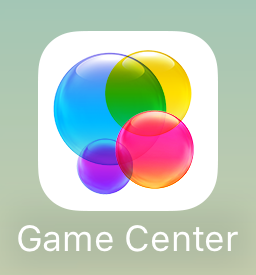
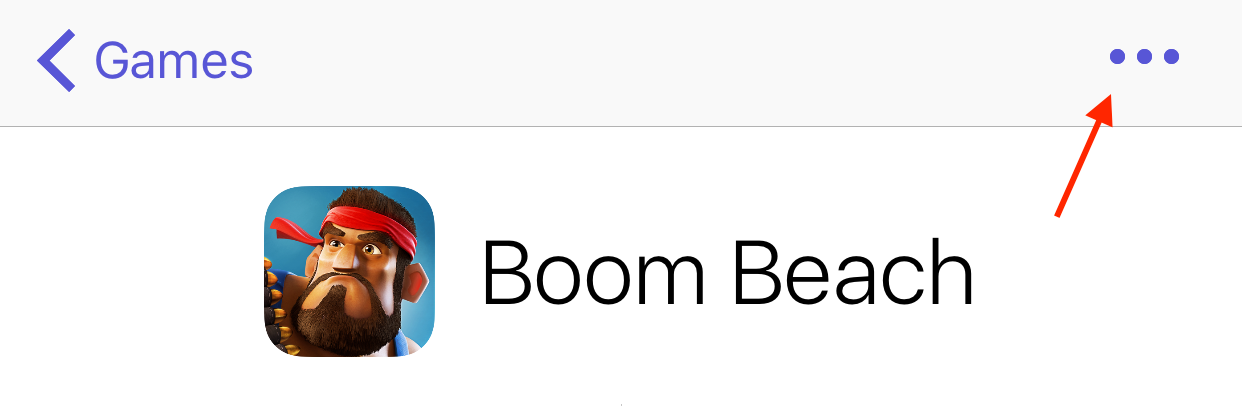
- Open the tab "Games", choose Boom Beach and tap on the three little dots in the upper right corner and choose "Play"
- Boom Beach will launch and if the connection was successful you will see a banner in the upper part of the screen saying "Welcome back, yourname"

Now your Boom Beach account is safe!
Well done Commander, you've foiled Lt. Hammerman once again. You are now free to Resume the Boom!
Transfer iOS to iOS
You can play your account on multiple devices or transfer your account to a new device by using Game Center. We'll show you how to do that in a couple of easy steps:
- First make sure that your game on your original device is connected to a unique Game Center account. To do so, go to your device settings > scroll down to Game Center > make sure that you are either logged in with your Apple ID or create a new account. Warning: do not share accounts with anyone - you always need to connect your account to your own Game Center account.
- Then go back to your home screen, open the Game Center App, choose "Games" from the toolbar, choose "Boom Beach" and then tap the three little dots in the right corner and choose "play". When you see the "welcome back, yourname" banner at the top of the screen, you know you have connected your Boom Beach game to Game Center successfully.
- After you have done all this you can go to your new/other device. Launch Game Center and login with the same Game Center Account you used on your old device. When opening the game you should see a pop up that asks you if you wish to load the game from your old device. Confirm and you are ready to go!
Transfer iOS to Android or vice versa
You can transfer your base from an iOS device to an Android device (or vice versa) using a one-time code generated in your game. You need to have access to both your iOS device and Android device for this to work. To transfer your base, the account on your Apple device must be connected to Game Center, and the game on your Android must be connected to Google+.
You can verify Game Center connection on iOS by logging into Game Center, then opening Boom Beach from Game Center's 'Games' tab. For Android, open Boom Beach and connect your base to Google+ in the in-game settings by selecting the Google+ sign in button.
To transfer your base, just follow these steps:
- Open Boom Beach on both your Android and iOS devices (old device and new device)
- Open the in-game settings window on both devices
- Press 'Accounts' → 'Link a device' button on your old device
- Choose 'This is the old device' on which ever one is applicable, then 'I want to link to another device'
- You should receive a code - write it down
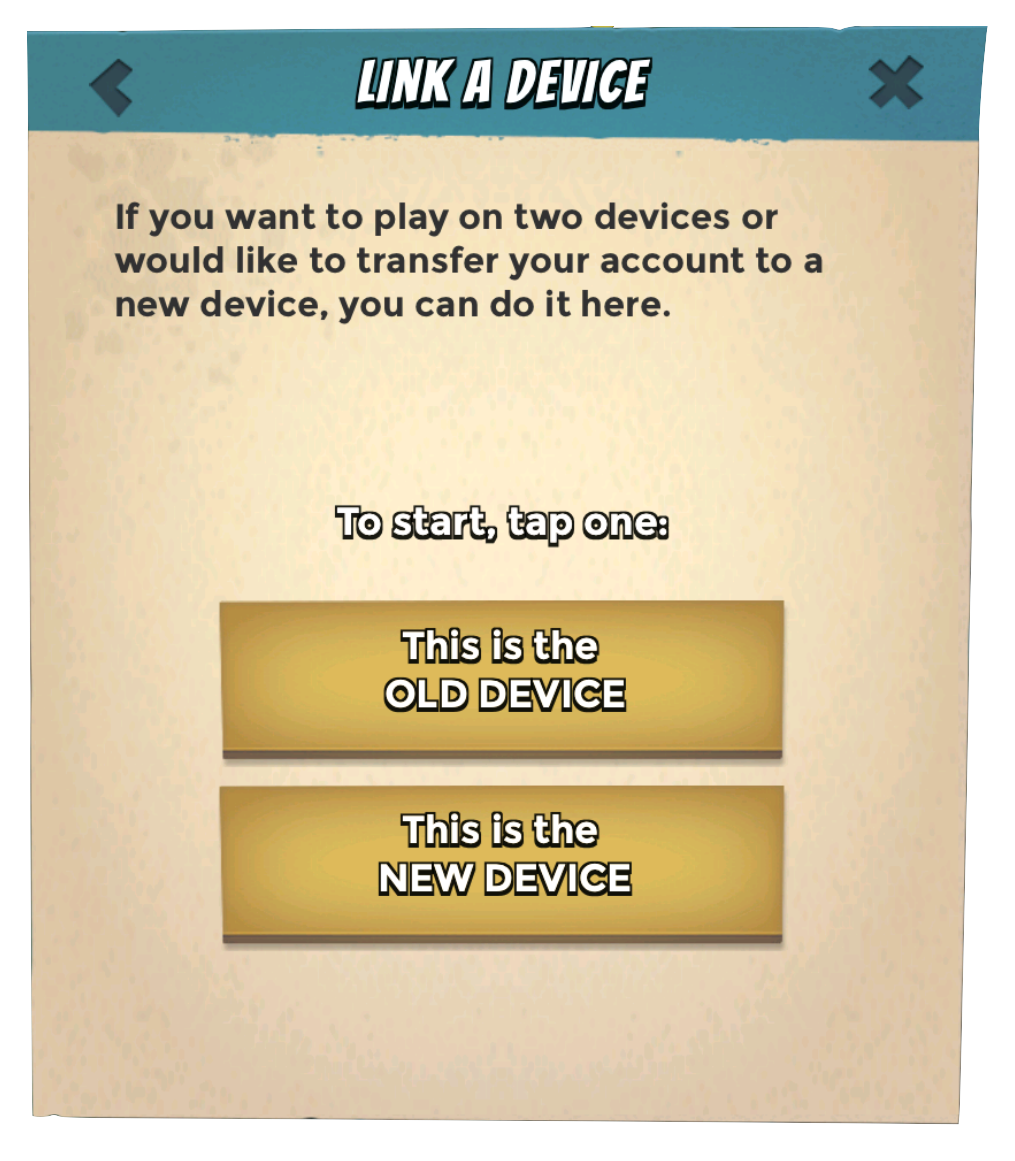
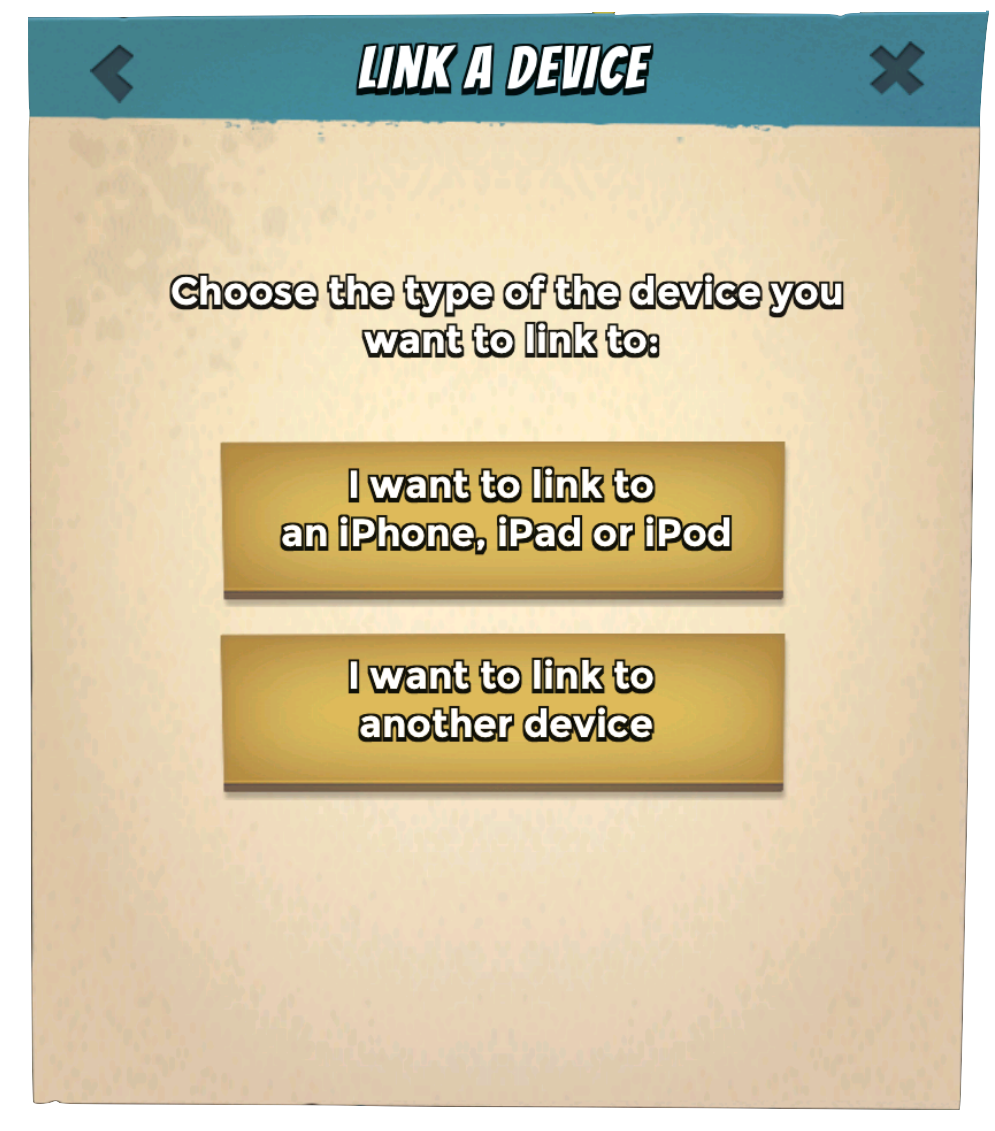
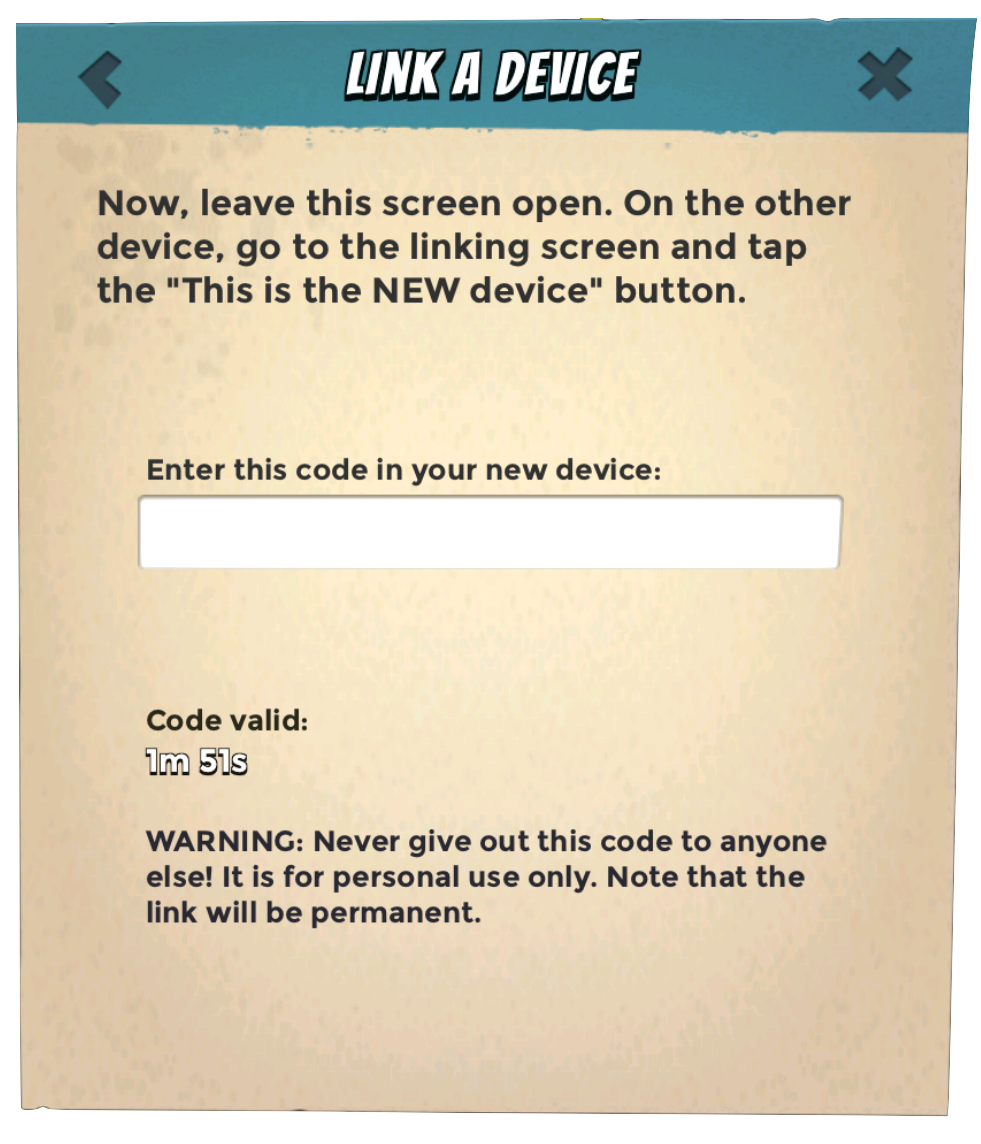
- Then press the 'Link a device' button on your new device
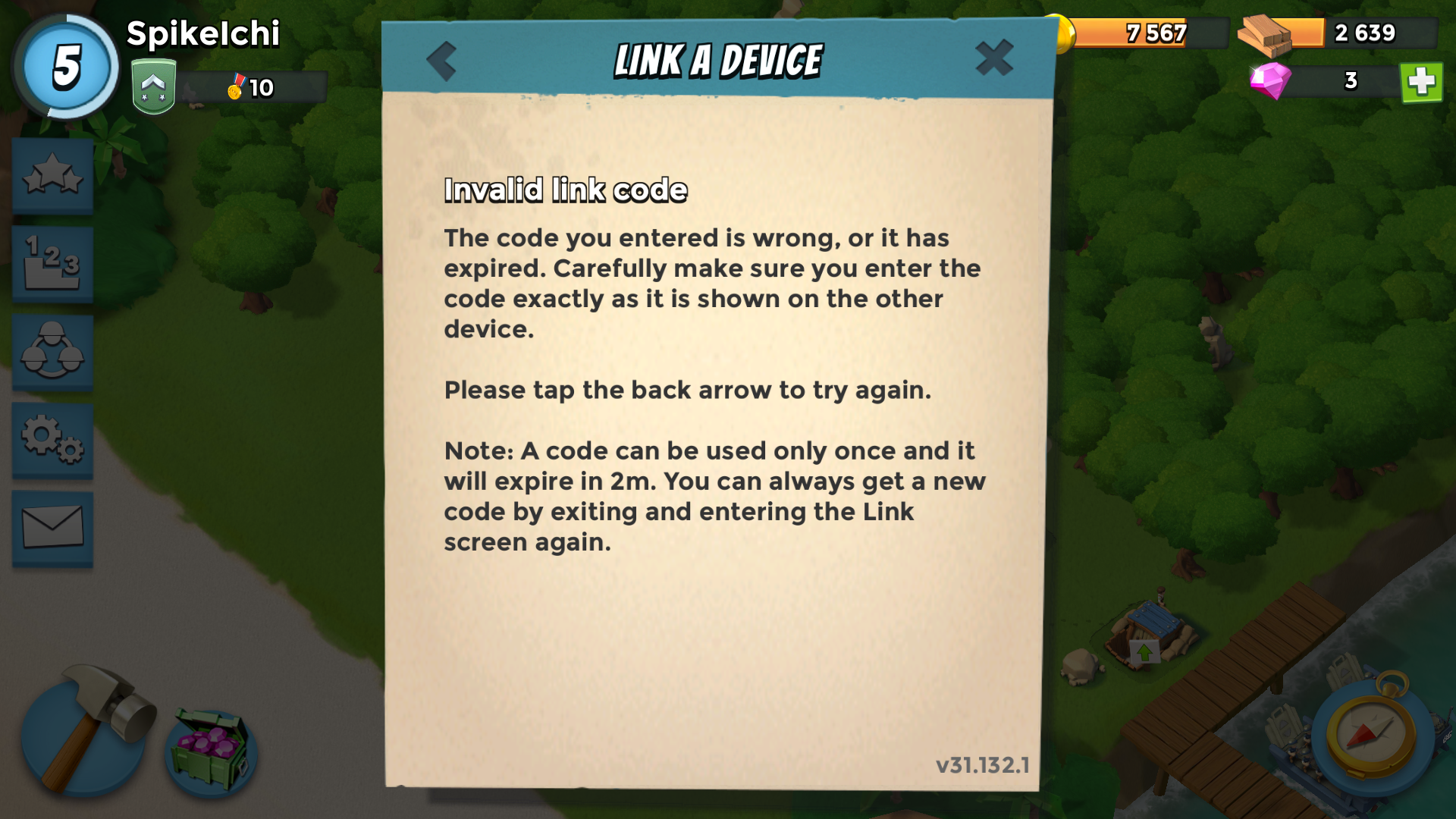
- Chose 'This is the new device' and enter the code you from your old device
Important: When entering the code, do not use the space bar on the keyboard, this will prevent you from finishing the code
After you have successfully copied the code from one device to the other, your original base will be transferred, allowing you to play one account on both devices so you can Resume the Boom.
Well-done Commander!
Transfer Android to Android
Open Boom Beach on your Android device and make sure that you have connected to Google Play. Add the same Google Play account to your new device through Users → Add new. Launch the game and select Sign into Google Play
and select your Google account. Boom Beach will detect the new Google Play account and confirm the transfer on the device.
Leave a Reply to Flynn Goulding Cancel reply