By default, the iPhone Mirroring window on macOS Sequoia 15.0 appears at actual size and cannot be resized. The frame of the iPhone with iOS 18 is not draggable and the size of the iPhone cannot be enlarged. However, it is possible to make the window larger through a hidden setting, or by updating macOS.
macOS Sequoia 15.1 and later
Resizing the window is possible from the View menu: choose View → Larger to increase the size.
One can also use the shortcut cmd++ and cmd+0 to reset to Actual Size.
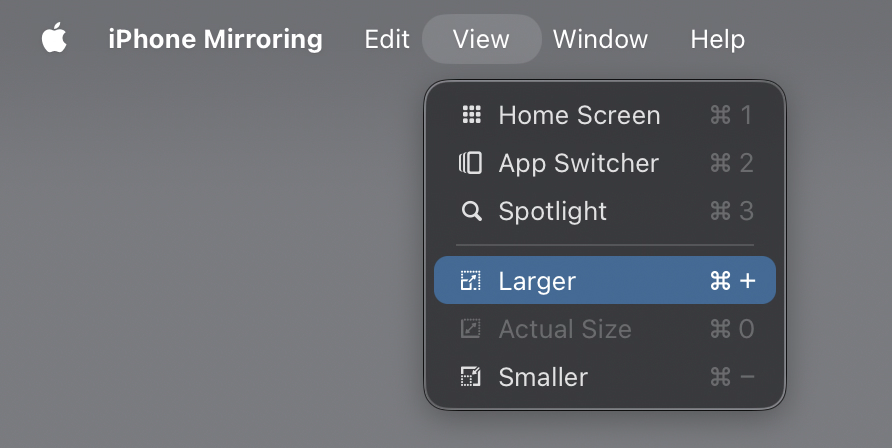
This doesn't provide the flexibility afforded by the previous hidden setting that enabled a slider though.
macOS Sequoia 15.0
Make sure iPhone Mirroring is closed, then perform the following steps:
- Open Terminal. It can be found in the /Applications/Utilities folder.
- Run
defaults write com.apple.ScreenContinuity showScalingControls -bool true. Copy, paste and press Enter. - Restart iPhone Mirroring. Quit the app and reopen it.
- A new slider is present in the title bar. Drag it to zoom the window larger.
This sets a hidden setting in the ~/Library/Preferences/com.apple.ScreenContinuity.plist file which makes an extra slider appear in the title bar.
Drag the slider to make the window larger and zoom the contents.
To reset this functionality and remove the extra slider, delete the override on the setting using defaults delete com.apple.ScreenContinuity showScalingControls and restart iPhone Mirroring.
Leave a Reply