
Since updating Apple Watch to watchOS 7, it's possible Auto Unlock with macOS stops working. This is due to a bug with the credentials stored in macOS used to authenticate the Handoff. You can reset these stored keys in Keychain Access to reset the Auto Unlock functionality.
Delete Keychain entries
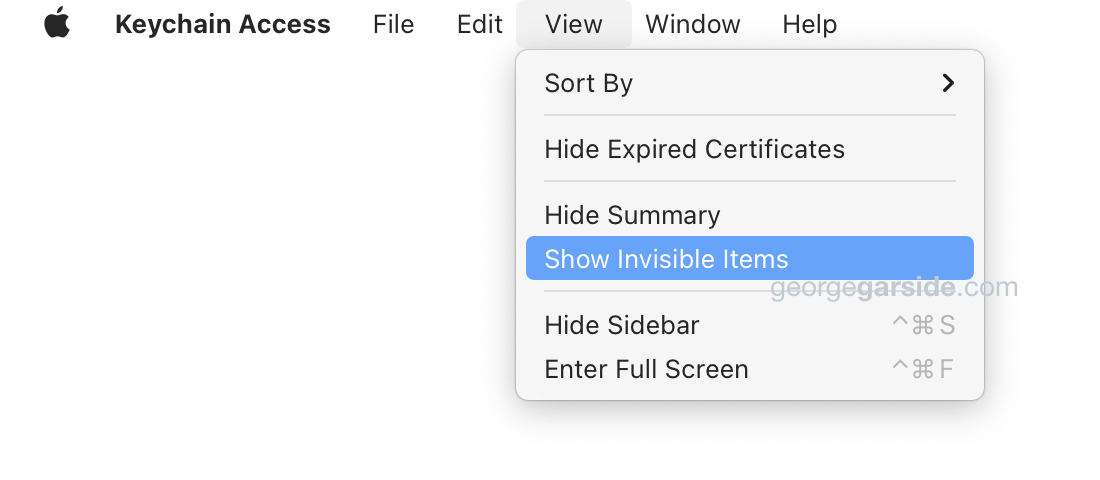
Open Keychain Access.app from the Utilities folder in Applications. Choose View → Show Invisible Items. This will show all items in the Keychain, including the entries relating to the Auto Unlock functionality, which would be hidden otherwise. If you can't find the items in subsequent steps, check that this is toggled correctly and not accidentally unset.
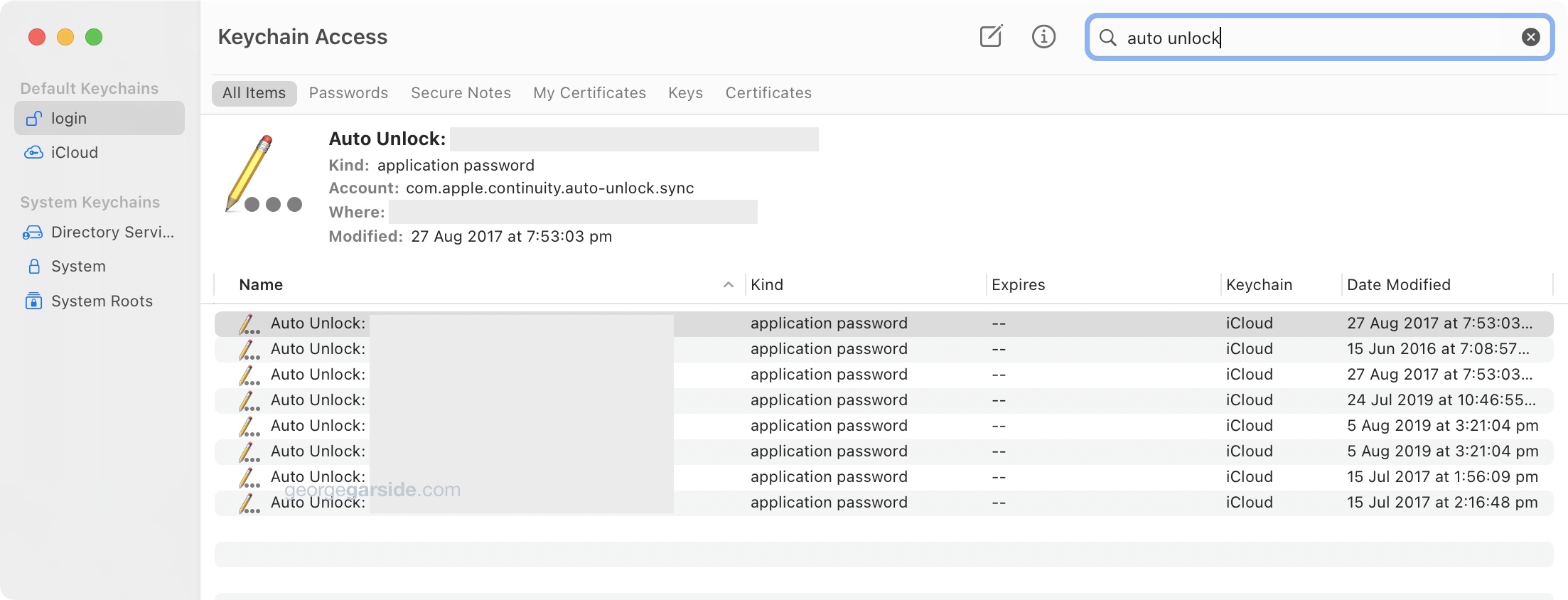
Search for ‘auto unlock’ and some application passwords should appear. If not, skip this step, but if some exist, delete all the ‘Auto Unlock’ items. These items are within the iCloud keychain so they are synchronised to other Macs you might also be signed in to, so Auto Unlock will be invalidated and disabled everywhere.
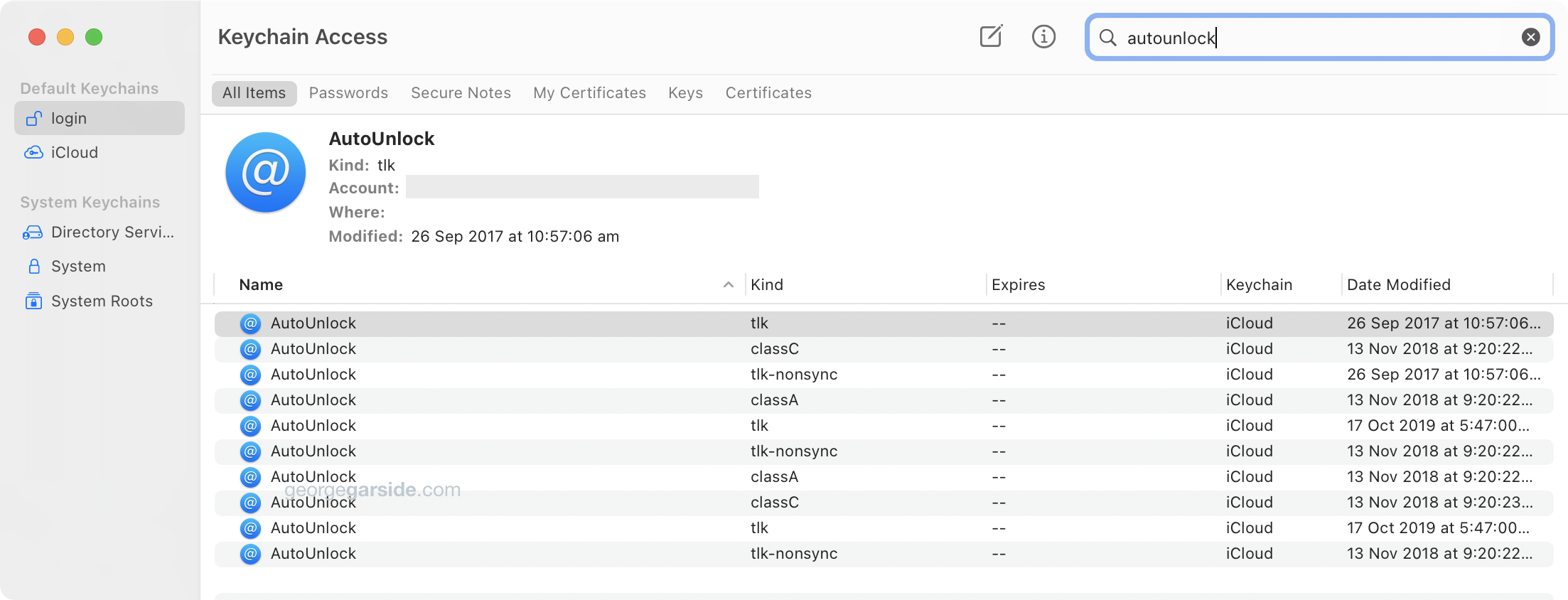
Now search for ‘autounlock’ and you should see some entries with that name. Delete all ‘AutoUnlock’ entries. Some of them might be regenerated shortly after deletion.
Delete preferences
Go to the Library folder in your home folder, open Sharing, then AutoUnlock. Delete both preference files within. If you can't find the folder, double-check you're looking in the Library folder within your home folder, not at the root of the boot volume — see the path at the bottom of the screenshot below.
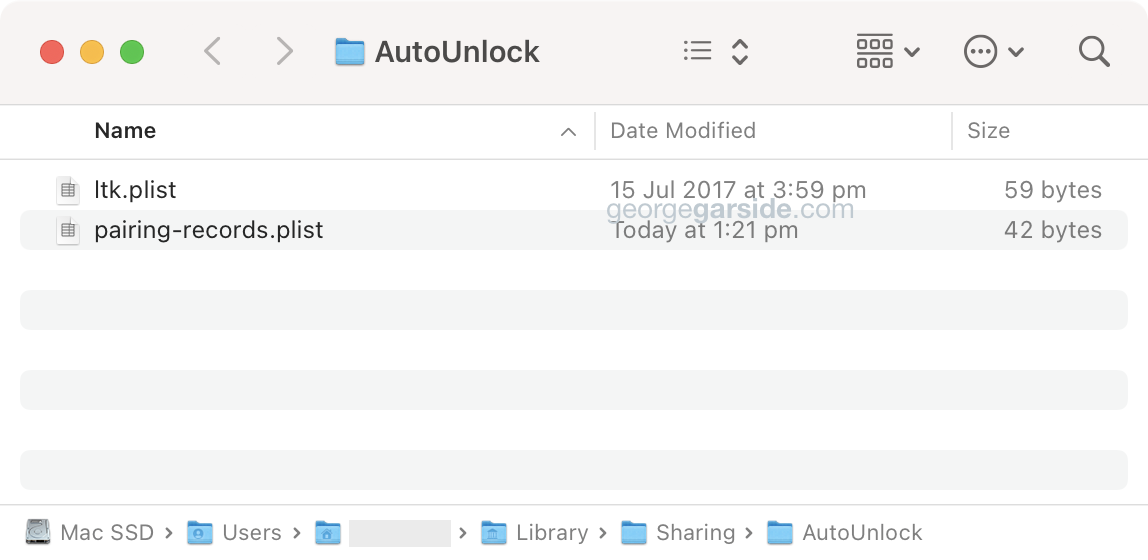
~/Library/Sharing/AutoUnlockRestart, then try to re-enable Auto Unlock in System Preferences. Hopefully these steps should get everything back to normal.
Leave a Reply to Eugene Cancel reply