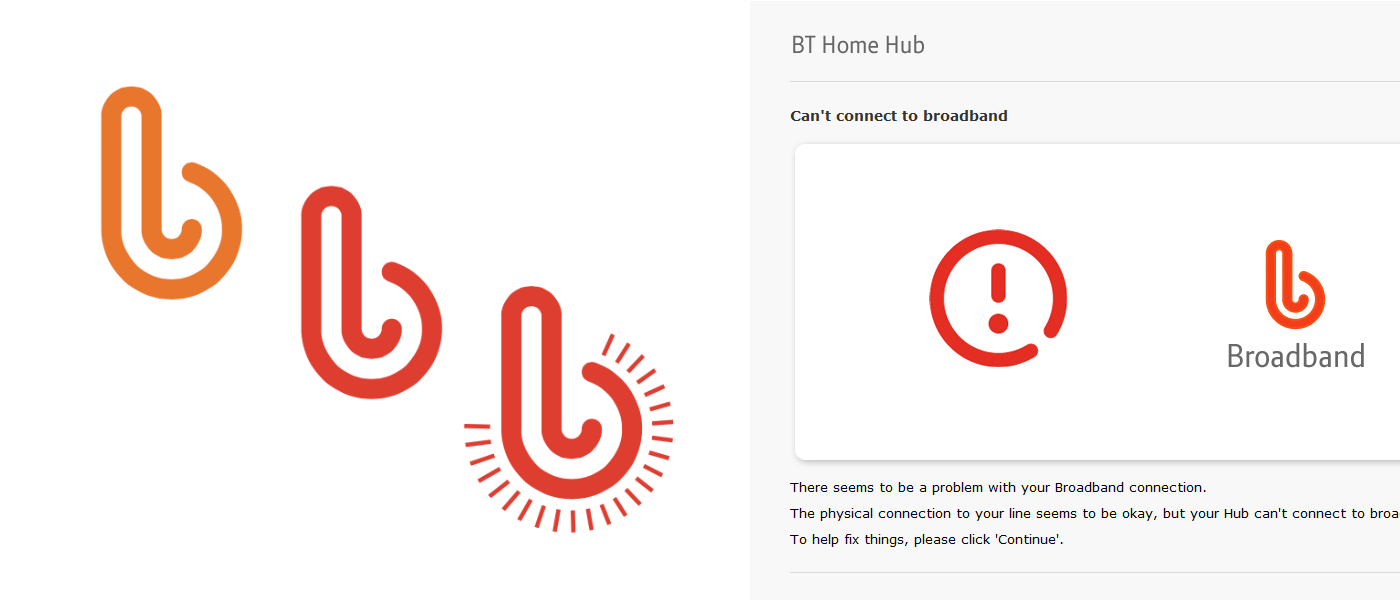
It seems there’s yet another bug in the BT Home Hub 5 and later BT Smart Hubs causing it to be unable to connect to broadband and show an orange flashing light. This time, the fix is easier than getting a replacement, although it’s more of a workaround.

This is the fix to the problem that after rebooting a Home Hub or Smart Hub, it is unable to connect to broadband, showing a flashing/solid orange bar light or red light and purple light (and possibly the red broadband light underneath). To fix this and allow your BT Hub to connect to broadband, try this:
BT Smart Hub purple/orange flashing light
- Go to http://192.168.1.254/ in your web browser.
- Choose Status in the top-left corner of the home page. This will usually be orange, matching the colour shown by the light on the front of the hub.
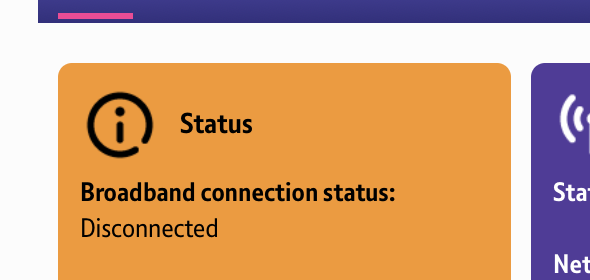
- Choose ‘Open 'No Connection' help’ under ‘No service’. A wizard will open to be
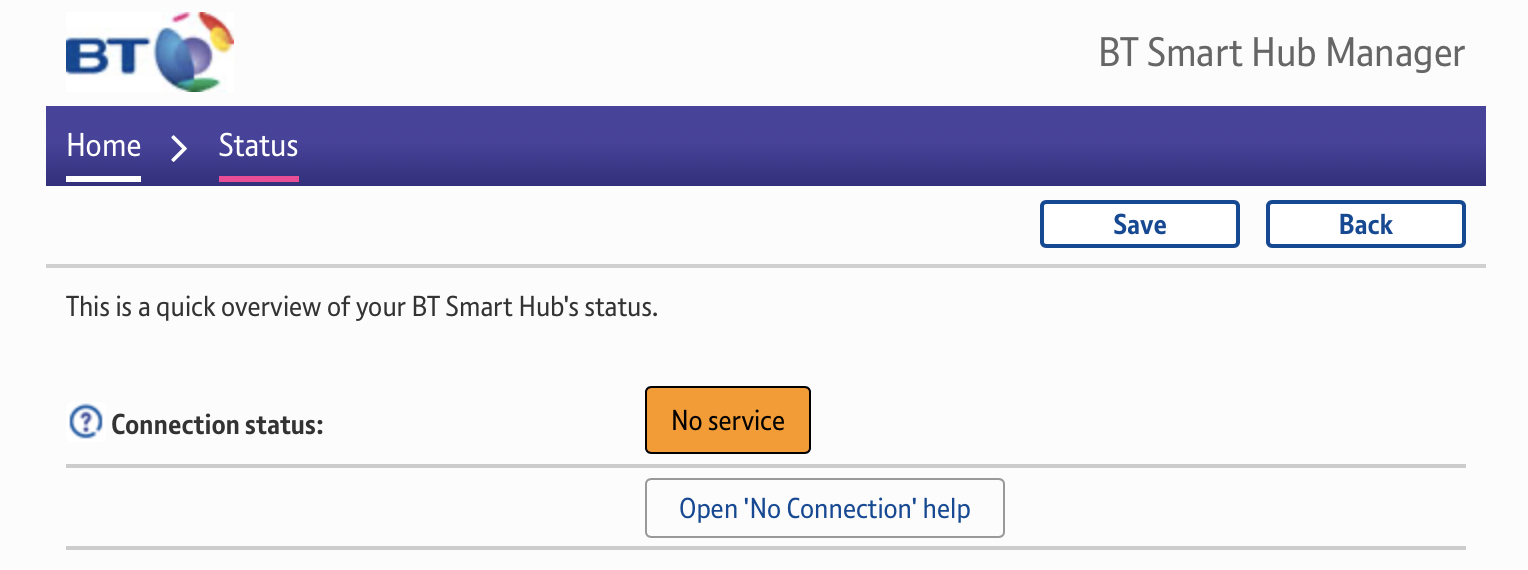
- Your BT Hub has detected a problem with your Internet connection. Click Start Troubleshooting to let BT Smart Hub establish what's wrong with the connection.
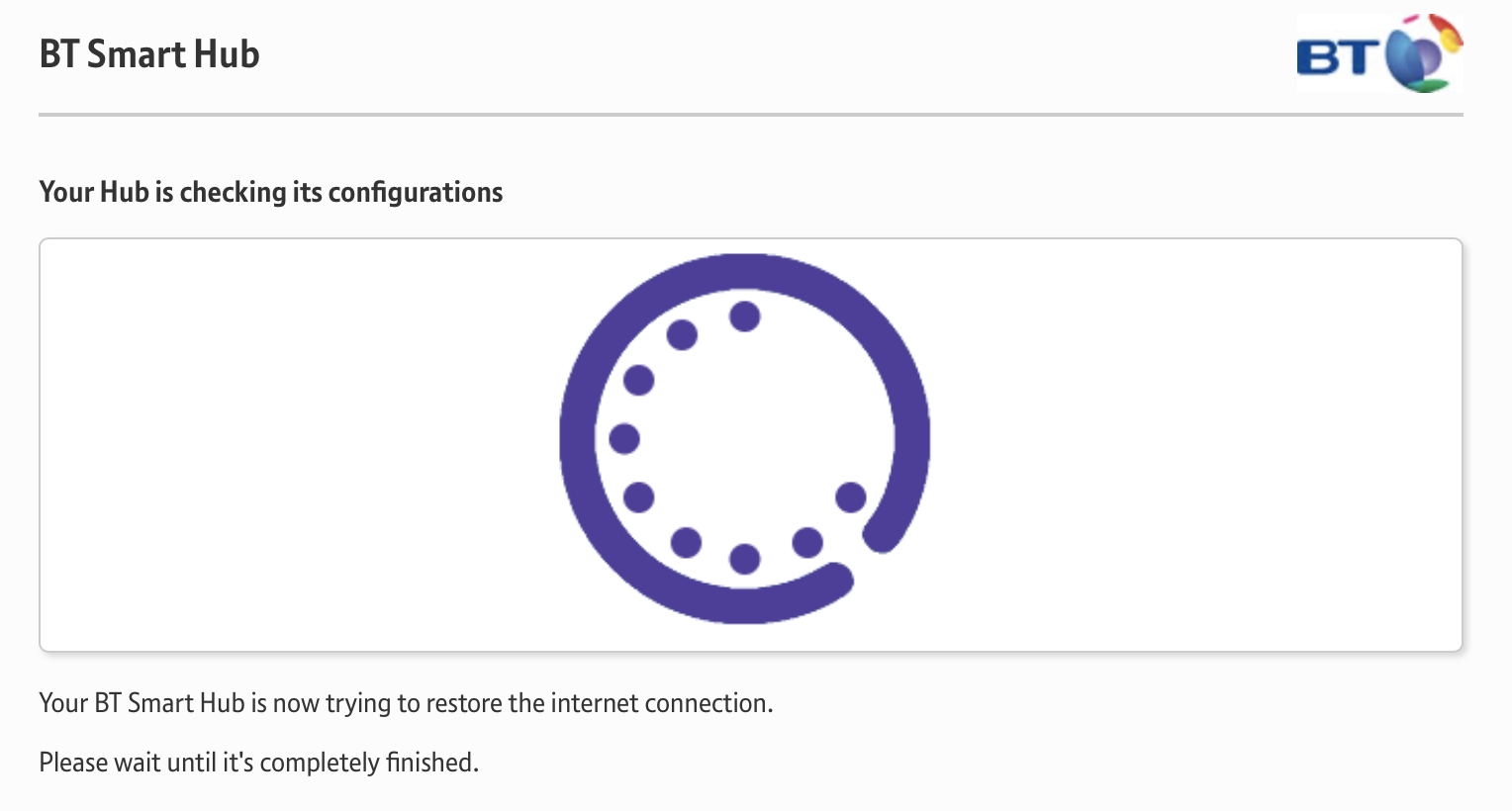
- BT Smart Hub will attempt to restore the Internet connection. Wait until the process has finished and the light on the front of the hub has returned to blue. The status will return to connected.
BT Home Hub orange flashing light
- Go to http://192.168.1.254/ in your web browser.
This is the default IP address for the hub. If you’ve changed the IP address, use that instead, or try http://bthomehub.home/. - Click Advanced Settings in the toolbar and log in with your admin password.
- Click Broadband, then Reset username.
- Wait a few seconds and the hub should connect.
The bar light on the front of the hub should go from solid/flashing orange, to flashing orange, to solid orange, then blue to indicate a successful connection to broadband. The broadband light under the bar light should go out when connection is made.
If you’re suffering from the bug of flashing orange and purple, you may need to do this each time you restart the hub and the orange flashing light will be replaced with a blue solid light and broadband will be connected.
If the hub still doesn’t connect to broadband, make sure you’ve gone through the standard troubleshooting procedures, including restarting the hub and making sure that all cables are connected correctly to the hub.
- Check power and all cables, then switch your computer and devices off and then on.
- While they’re restarting, press and hold your Hub’s Restart button until your Hub light goes orange.
Leave a Reply to Kym Cancel reply