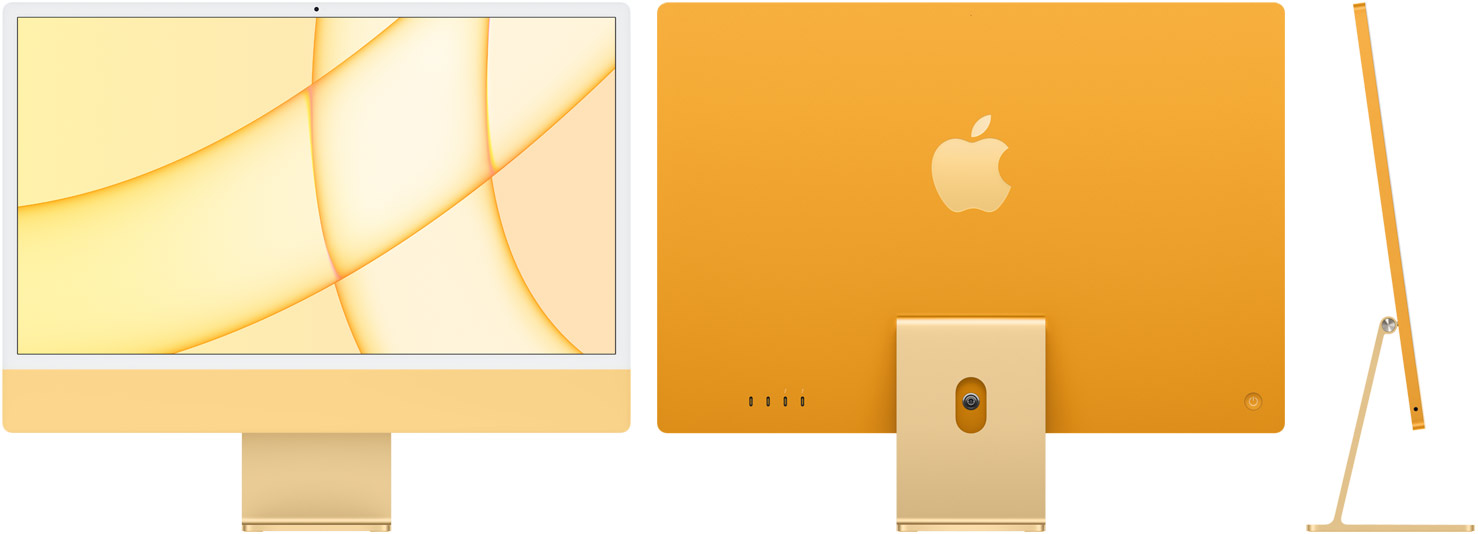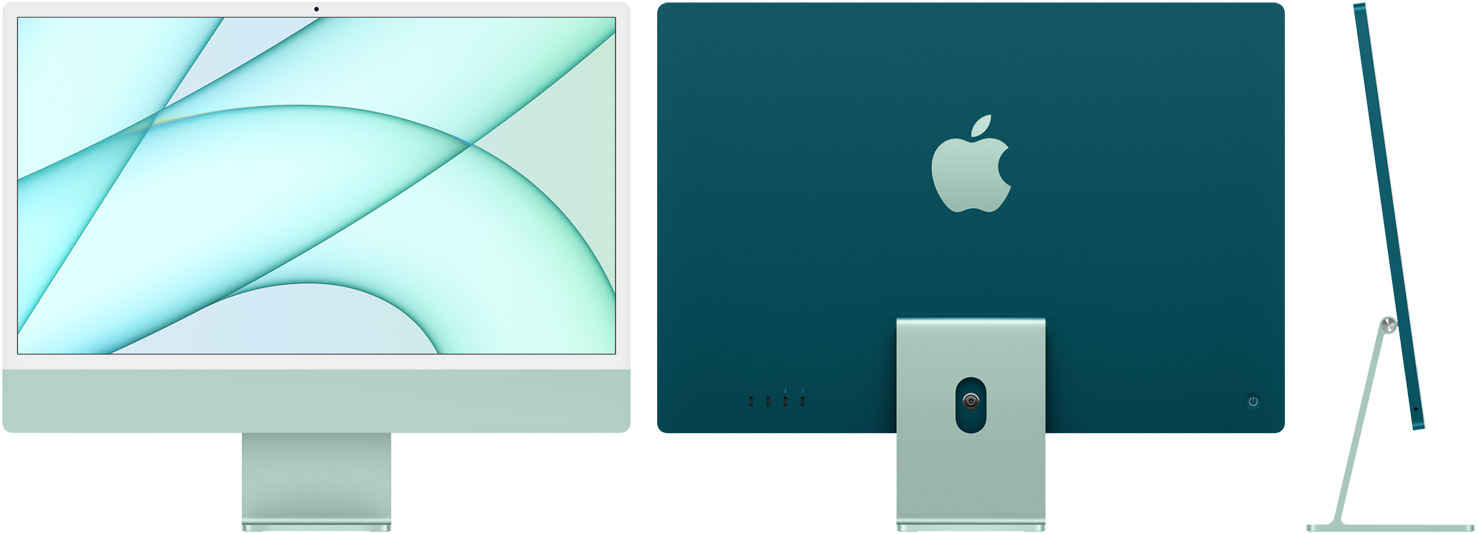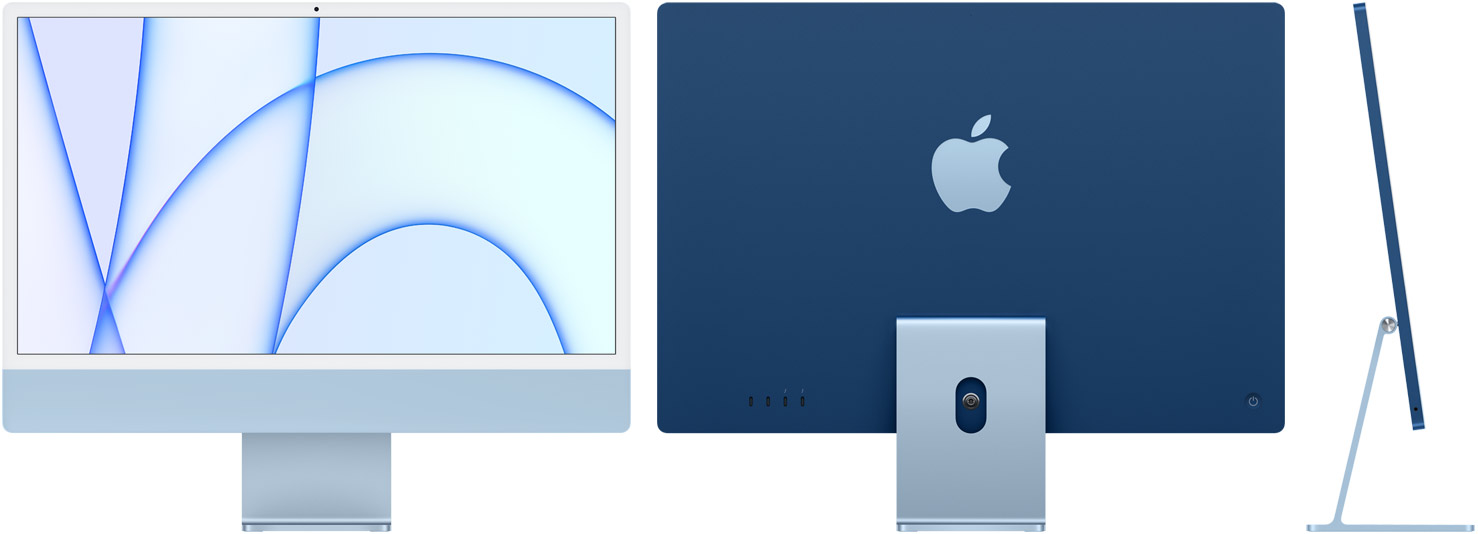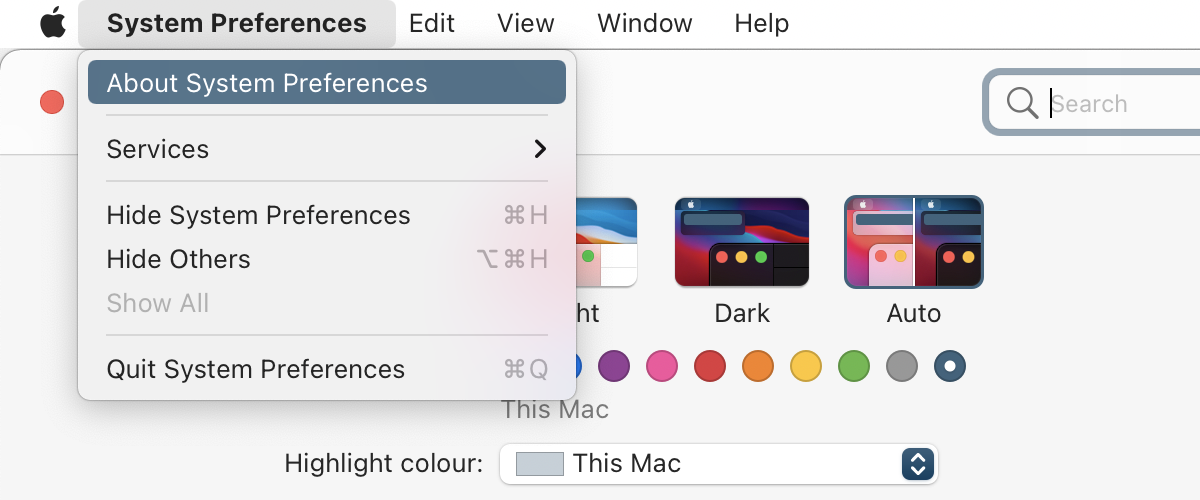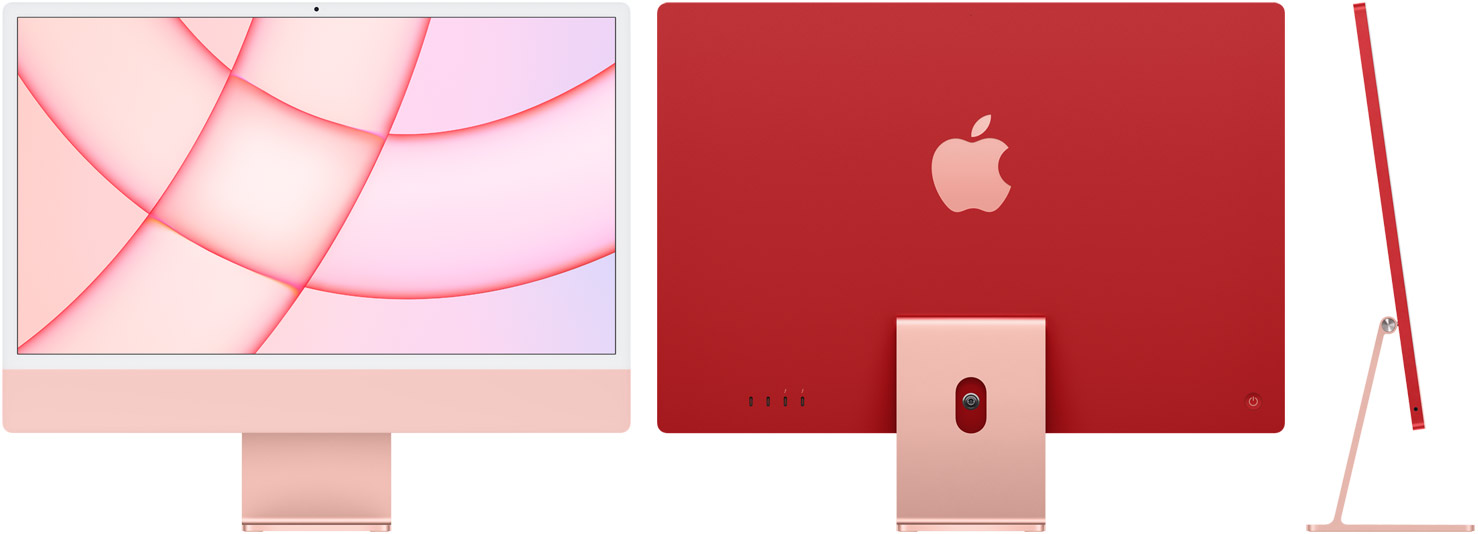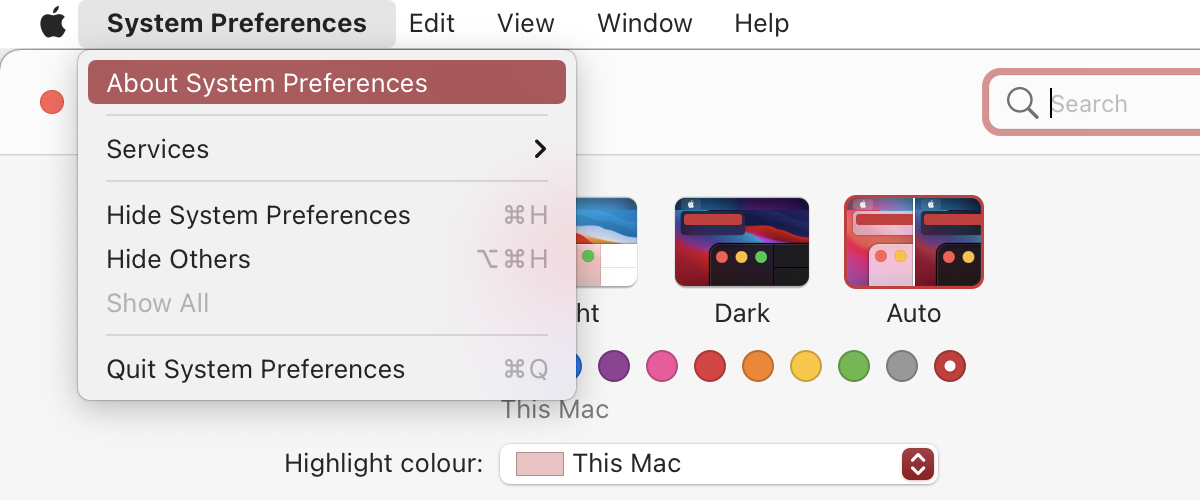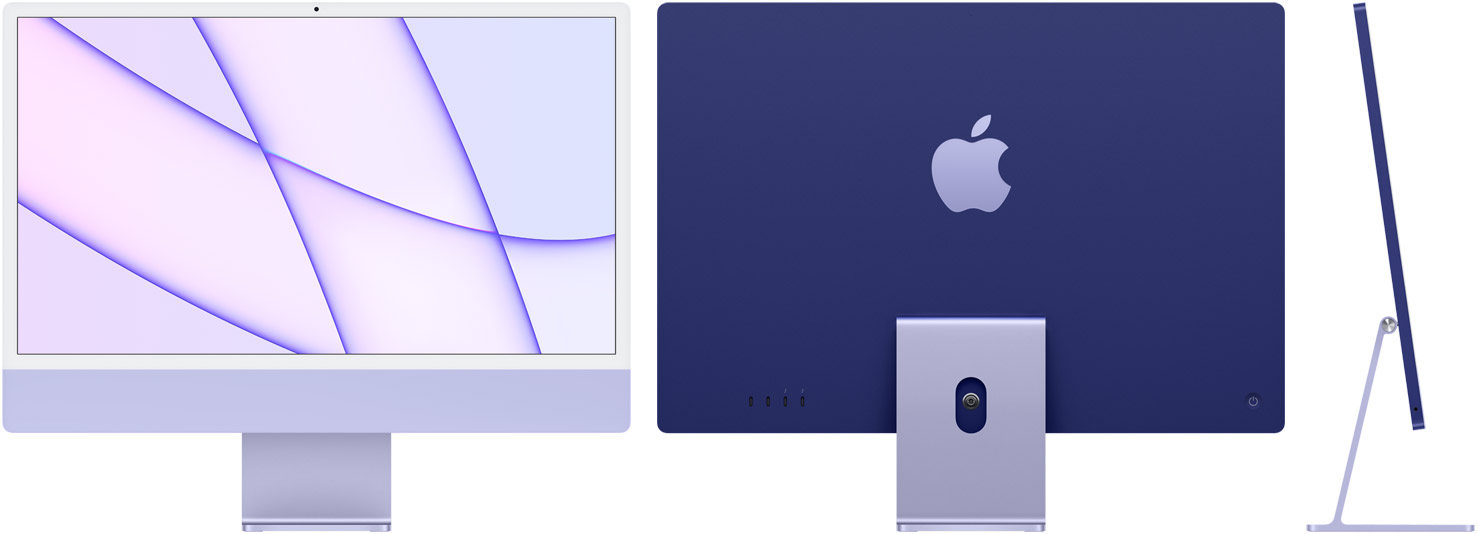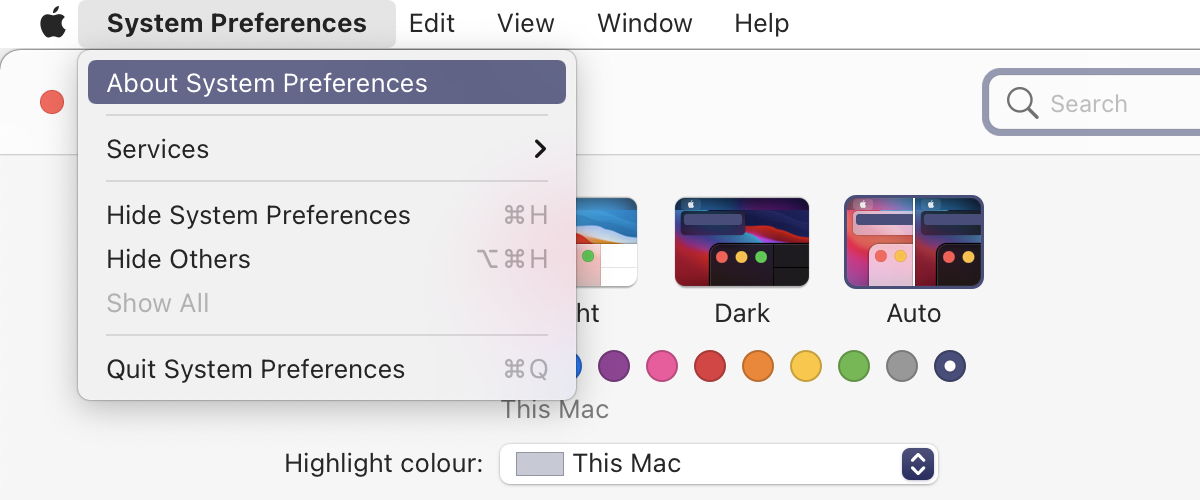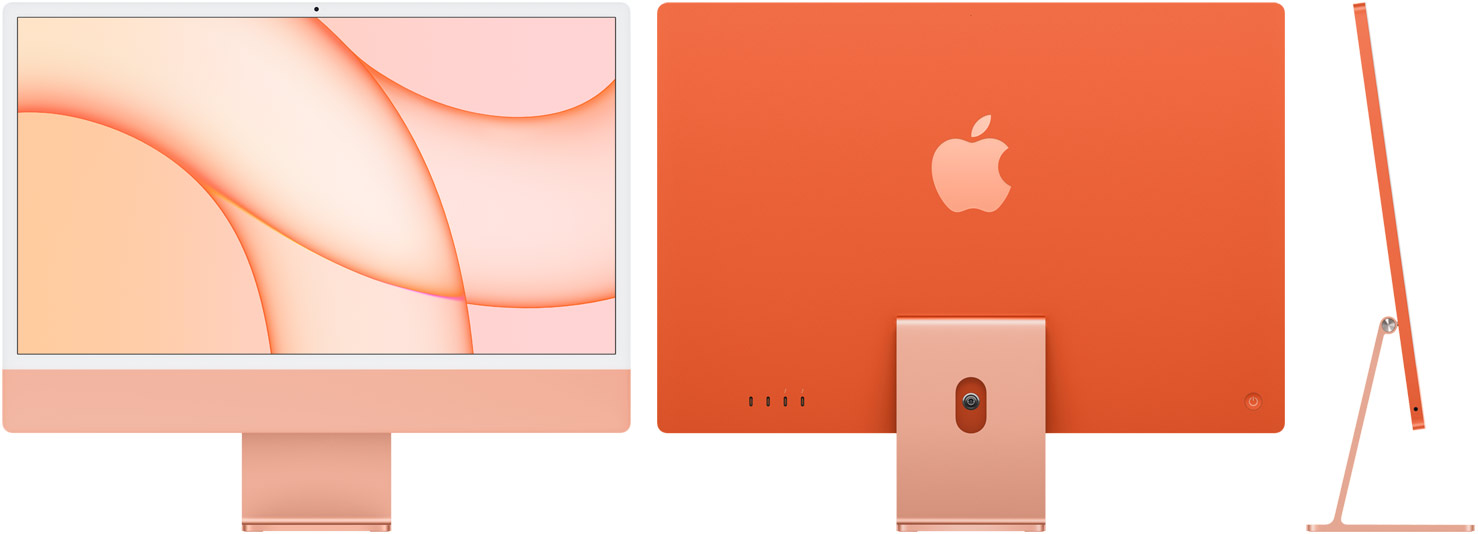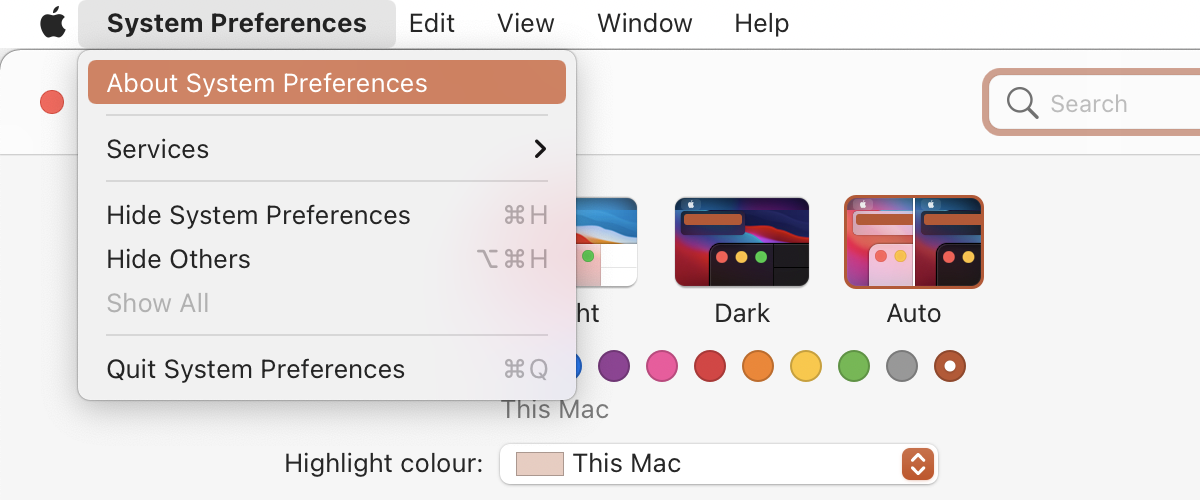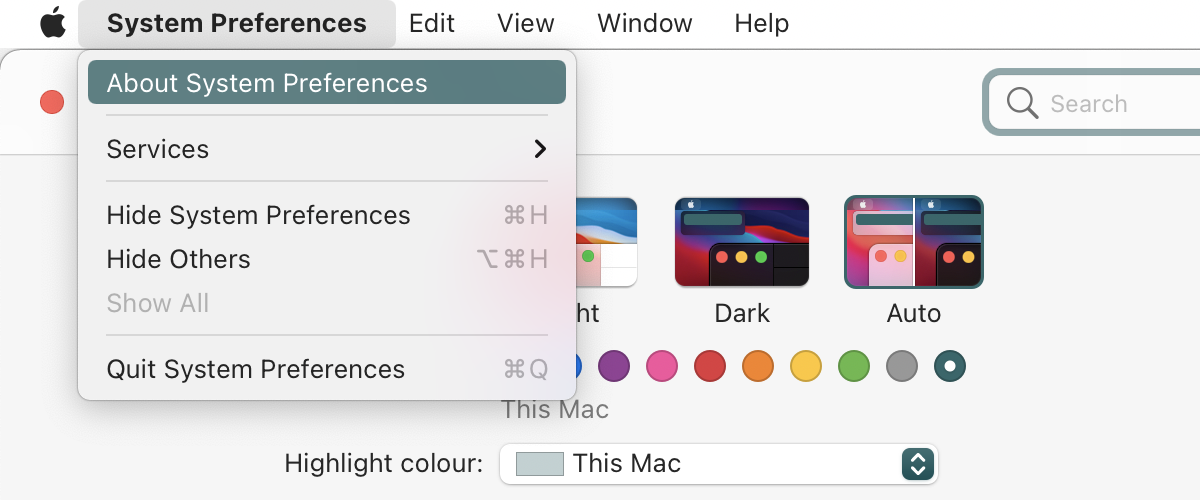
The new colourful iMac M1s have corresponding accent colours set across the system. These colours are unique to these Macs and neither previously available on macOS nor now made available on other Macs.

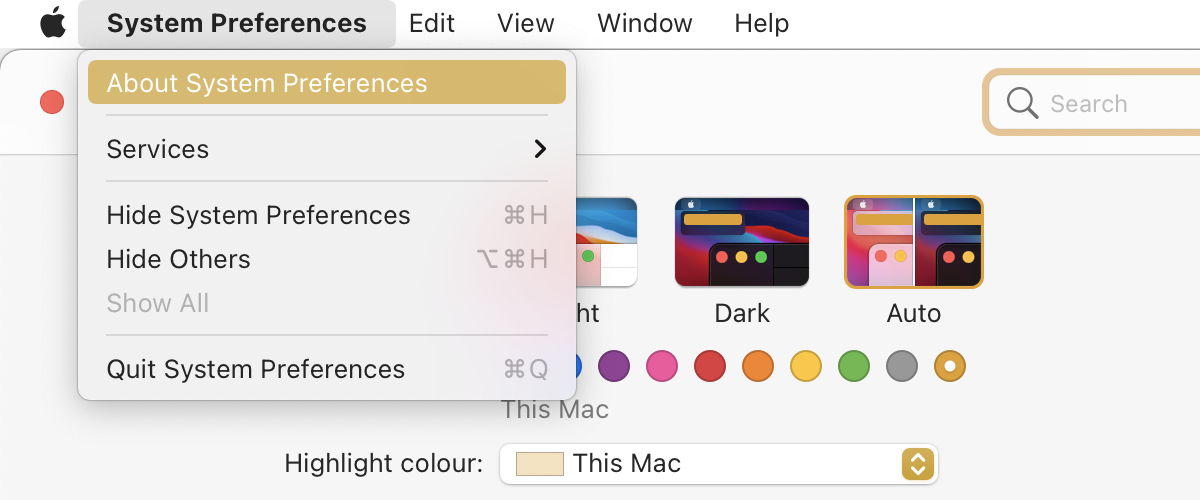
The accent colour configuration is available in System Preferences → General (Appearance.prefPane), by choosing ‘This Mac’. Of course, this option is only available on the new Macs… usually!

There's a workaround so you can set these colours on your own Mac.

First, make sure you're up to date. This requires at least macOS 11.3.1 as the version of macOS released with the new M1 iMacs and including the functionality for these colours.

Then start by enabling the hardware-based accent colours. This requires enabling NSColorSimulateHardwareAccent.

defaults write -g NSColorSimulateHardwareAccent -bool YES

Then choose a colour with NSColorSimulatedHardwareEnclosureNumber with a value between 3 and 8 inclusive.

defaults write -g NSColorSimulatedHardwareEnclosureNumber -int 3

Restart apps to make the changes take effect, or just log out and back in to update everywhere.

3iMac M1 yellow
Yellow
Big Sur M1 custom accent colour 3
4iMac M1 green
Green
Big Sur M1 custom accent colour 4
5iMac M1 blue
Blue
Big Sur M1 custom accent colour 5
6iMac M1 pink
Pink
Big Sur M1 custom accent colour 6
7iMac M1 purple
Purple
Big Sur M1 custom accent colour 7
8iMac M1 orange
Orange
Big Sur M1 custom accent colour 8
Accent colour option number mapping to iMac and example accent in macOS

Advertisements
Advertisements

9 responses

Leave a Reply to Paul W Cancel reply

Your email address will not be published. Required fields are marked *

  1. Joe P
    16

    Hands down the best post I read today 🤩

  2. David
    3

    Awesome!

  3. Hugh
    2

    King/Queen, you dropped this 👑

    Many thanks!

  4. lkmljnkjlnkjn
    1

    doesnt work on m1 pro with sonoma

    1. lkmljnkjlnkjn
      2

      taking back, it does

      after you apply the second command in terminal, go to system settings and the color will pop up in the appearance section. then select it. it will not get updated automatically nor after restart of the computer

  5. Paul W
    1

    The new iMacs have given us some (slightly) new colours; up to 14 now. 10 in particular is a 'proper' dark green, compared to the teal of #5.

  6. Mic
    1

    Did someone successfully activated this on iMac M1?

  7. Taxi Limassol Pro
    1

    Amazing, changed the accent appearance of my macbook, looks totally cool when looking at a different color for once after only having a limited option. Putting those 2 commands in the Terminal and the rebooting your system will do it for anybody.

  8. Mamaza
    0

    It's not works on iMac M1 Silver.
    Please email me if you know how to fix it.